


7 Top Trello Alternatives I’d Recommend After Testing Them Myself
You outgrew simple Kanban boards and are now looking for a Trello alternative?
After testing productivity apps for over 3 years, these are the ones I’d recommend:
🤝 Vaiz → Best Trello alternative for modern collaborative workspaces
🏢 Monday.com → Best Trello alternative for larger businesses
👥 Hive → Best Trello alternative for small teams
⚡ Motion → Best all-in-one Trello alternative
🎯 Coda → Best simple Trello alternative
🔓 AppFlowy → Best open-source Trello alternative
💎 ClickUp → Best free Trello alternative
Quick Comparison Before Switching From Trello
|
Tool |
Where it beats Trello |
My favorite feature |
Where Trello is stronger |
Price |
|---|---|---|---|---|
|
More complete workspace with docs, AI, and automation |
Clean interface & Project Docs |
Simpler for basic Kanban workflows |
Free / From $5/user/mo |
|
|
More advanced project planning and reporting |
Custom Dashboards |
Better value for small teams |
Free / From $9/user/mo |
|
|
Built-in collaboration with chat, email, and docs |
Team collaboration |
Better free plan for simple task management |
Free / From $5/user/mo |
|
|
AI automatically schedules your work |
AI Scheduling |
Simpler project management and lower pricing |
No free plan / From $19/user/mo |
|
|
Combines docs, databases, and project management |
Flexible documents |
Easier to learn for basic boards |
Free / From $10/user/mo |
|
|
Open-source, offline, and self-hosted |
Local AI & self-hosting |
More integrations and mature workflows |
Free / From $10/user/mo |
|
|
Much deeper project management with a generous free plan |
Whiteboards & Docs |
Simpler interface and shorter learning curve |
Free / From $7/user/mo |
How we selected the best Trello alternatives
When selecting the best Trello alternatives, I used our standardized testing framework for project management software, developed over 3+ years of testing productivity apps.
The recommendations in this article are based on hands-on testing across multiple categories, including project management, collaboration, automation, AI, pricing, and overall user experience.
Since every tool focuses on a different type of user, I didn’t rank these Trello alternatives purely by their overall score. Instead, I organized them by where they outperform Trello and who they’re best suited for, whether that’s small teams, larger businesses, open-source workflows, or all-in-one productivity.
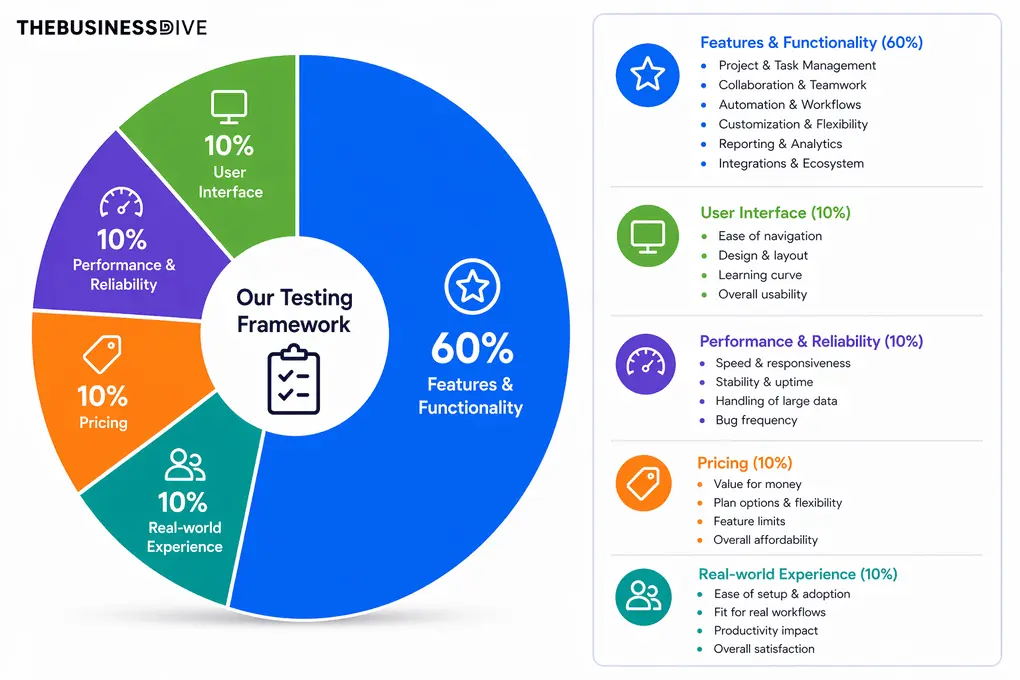
Our scoring breakdown after testing 20+ project management apps:
⚙️ Features & functionality — 60%
🖥️ User interface — 10%
⚡ Performance & Reliability —10%
💰 Pricing — 10%
👥 Real-world experience — 10%
Want a detailed breakdown of how we test each category?
Learn exactly how we test tools → Review methodology
A Closer Look at Each Trello Alternative

Vaiz
Vaiz is a modern work management platform that combines project tracking, documentation, collaboration, automation, and AI in one workspace. It offers more structure than Trello while remaining easy to learn and navigate.
Quick verdict
Cross-functional product and tech teams currently running tasks in one tool and docs in another — Vaiz replaces both at roughly half the cost.
Your team requires SOC 2 compliance, SAML-SSO, or a procurement-heavy purchasing process.
More complete workspace without a steep learning curve.
Lighter reporting and automation than larger PM tools.
How Vaiz’s Features Performed During My Testing
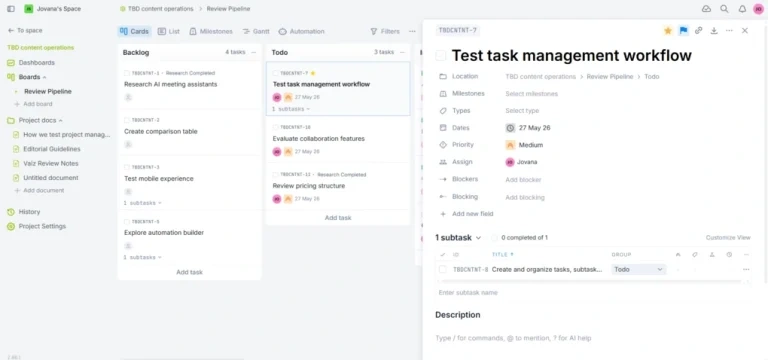
Project management: Creating projects only took a few clicks, and I could start building workflows almost immediately. I mostly worked in the Cards view, but I also switched between List, Calendar, Milestones, and Gantt depending on the project. I also liked that Vaiz offers templates for different teams and workflows that make the initial setup even faster.
Task management: The task view includes everything I needed while testing, including subtasks, milestones, dependencies, comments, and activity history. Moving tasks between workflow stages was simple with drag-and-drop, and I could also reorganize work or link related tasks without much effort.
Collaboration: Most collaboration features are built directly into projects and tasks. I could leave comments, mention teammates, collaborate on subtasks, work in shared docs, and create diagrams in tasks and documents without leaving the workspace.
Project Docs: The Project Docs are connected with the rest of the workspace, so it was easy to keep documentation together with tasks and discussions. The editor supports slash commands and collaborative editing, which is practical for project planning and internal documentation.
Dashboards: The dashboards gave me a centralized overview of tasks, workloads, and project activity. Setting them up was straightforward, and I could customize them with different widgets depending on what I wanted to track.
Automation: Vaiz uses a simple “when → then” automation builder. It handled routine workflow automation well, especially for task updates and status changes, but it does not yet offer the same level of flexibility as larger project management platforms.
AI assistant: I mainly used the AI assistant inside Project Docs for writing, editing, and summarizing content. It worked well for documentation. Vaiz also supports Claude MCP integration and Cursor — meaning your team can create tasks, pull context, and manage work directly from the AI tools you’re already using. A native AI agent is launching summer 2026.
Integrations: Vaiz covers the integrations most teams need, including Slack, GitHub, GitLab, and Zapier. I also liked that it supports one-click imports from Trello, Asana, Jira, and Notion (tasks only, full import in development), and several other project management tools, making migration much easier — with ClickUp, Monday.com, and Wrike support coming soon.
User interface: The interface is clean and lightweight, and it was easy to move between boards, tasks, dashboards, docs, and automations. I particularly liked the Home page, which brings together recent documents, assigned tasks, favorite items, and projects in one place.
Vaiz pricing
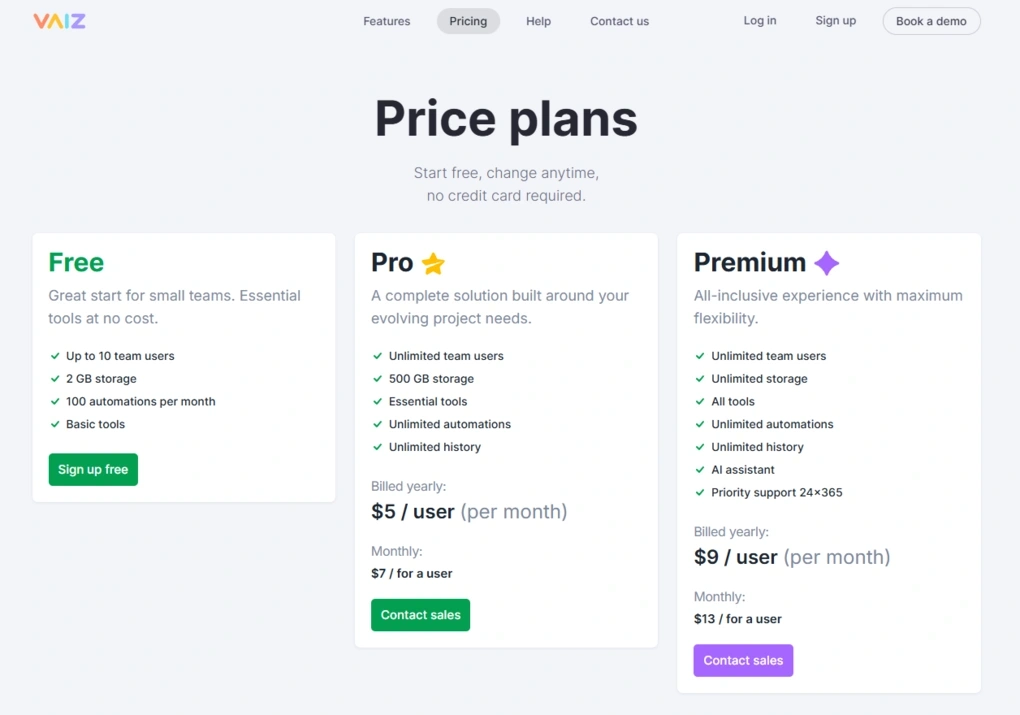
- Free plan available + a 30-day free trial of the paid plans
- Pro plan: $5/user/month with annual billing
- Premium plan: $9/user/month with annual billing
- Enterprise plan: Custom pricing with self-hosted deployment options available
Vaiz’s Strengths
Short wrap-up: I recommend Vaiz for startups, agencies, and small to mid-sized teams that have outgrown Trello but don’t want the complexity of enterprise project management software.
Vaiz’s Limitations
Short wrap-up: If your team depends on advanced reporting, highly customizable automations, or enterprise-level workflows, you’ll likely be better served by ClickUp or Monday.com.
🔎 Read my full review: Vaiz Review 2026 | Lightweight Done Right

Monday.com
Monday.com is an intuitive project management platform mostly for teams. Thanks to its security measures and integration options, Monday.com is ideal for enterprises as well.
Quick verdict
Growing teams and larger businesses managing multiple projects.
You want the lowest-cost project management solution or rely heavily on mobile apps.
More project views, customizable dashboards, and advanced team management features.
The higher-tier plans can become expensive, and the mobile app still has some limitations.
How Monday.com‘s Features Performed During My Testing
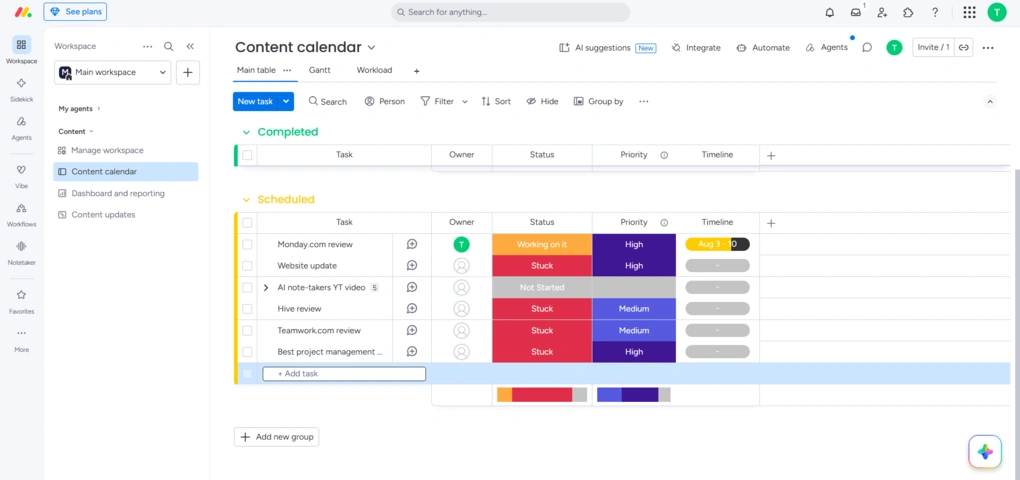
Project management: Monday.com offers one of the widest selections of project views I’ve tested, including Kanban boards, Gantt charts, calendars, workload views, and portfolio management. I enjoyed switching between these views, and I was impressed by how quickly they loaded. It also offers some project templates, which saved me 15-30 minutes when kicking out a new project.
Task management: Adding and assigning tasks only took a few clicks, and I could customize statuses, priorities, timelines, owners, and columns with ease. The only feature I missed was recurring tasks, which require automation instead of being built in.
Custom dashboards: The dashboards were one of my favorite parts of Monday.com. I found them easy to customize with widgets, charts, and apps, and simple to monitor projects, track progress visually, and manage budgets from one place.
Team collaboration: Monday.com includes all the collaboration features most teams need, including comments, mentions, file attachments, project sharing, and an activity feed. Everything stayed well organized inside projects, so collaboration was straightforward.
Time tracking: Thanks to the built-in time tracking tools, it was easy to record time spent on tasks. I also liked that exporting tracked time to Excel only took a few clicks.
Automation: Monday.com has an intuitive automatic builder, so creating automations was simple. Setting up trigger-and-action workflows didn’t require much learning, even when adding conditions.
Docs: Monday Docs allows you to create documents using text, tables, widgets, lists, and templates. I also liked having AI available inside documents for writing and summarizing content.
AI features: Monday’s AI features are integrated directly into boards, workflows, docs, and automations. AI Blocks, AI Sidekick, AI Workflows, AI Agents, Monday Vibe, and AI Notetaker cover tasks ranging from content generation and workflow automation to app building and meeting summaries.
Integrations: Monday.com integrates directly with over 850 applications and supports thousands more through Zapier. It was easy to connect it with the tools I already use.
Mobile app: I also tested Monday.com’s mobile app on iOS. While it covers the core functionality, I noticed occasional syncing issues when adding new board items, and it still offers fewer features than the desktop version.
User interface: Monday.com has one of the most intuitive interfaces among the project management tools I tested. Although there is still a learning curve, it was easy to find features.
Monday.com pricing
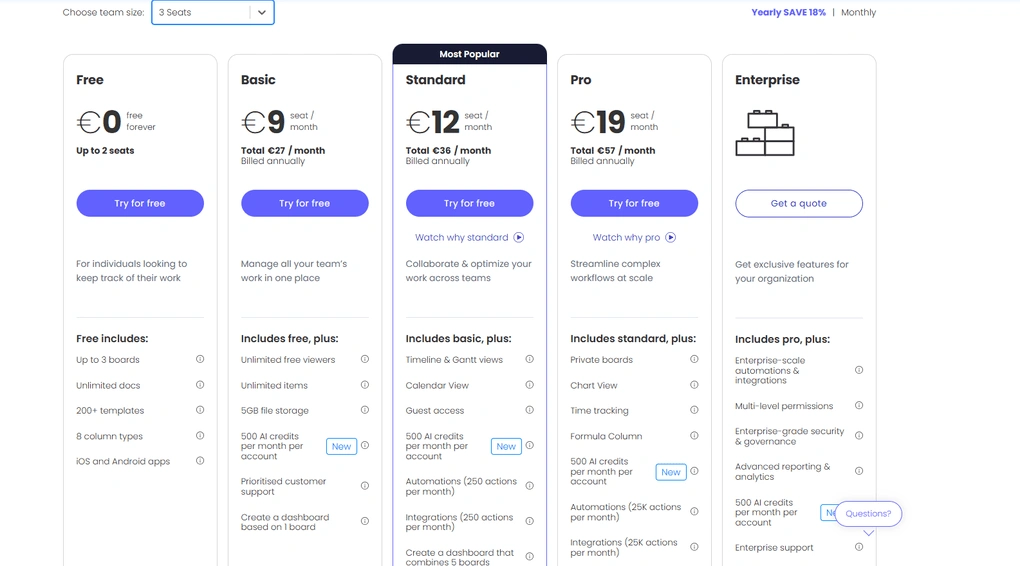
- Free plan available
- Basic plan: $9/seat/month with annual billing
- Standard plan: $12/seat/month with annual billing
- Pro plan: $19/seat/month with annual billing
- Enterprise plan: Custom pricing
Monday.com‘s Strengths
Short wrap-up: I recommend Monday.com for growing teams and larger businesses that need a scalable project management platform without the complexity of more technical tools.
Monday.com‘s Limitations
Short wrap-up: If recurring tasks, a polished mobile experience, or lower pricing are your priorities, there are better Trello alternatives on this list.
Related articles:
- Asana Vs Monday: I Personally Tested Both (2025)
- ClickUp vs Monday: My Findings After +6 Months (2025)
- Teamwork vs Monday 2025 | I Personally Tested Both
- Notion vs Monday: An Unfiltered Comparison (2025)
🔎 Read my full review: Monday.com Review 2025: Is the $228 Price Tag Justified?

Hive
Hive is a project management platform built for small and mid-sized teams. Besides project and task management, it includes team chat, collaborative docs, dashboards, automation, AI tools, and even email, making it a much more complete workspace than Trello.
Quick verdict
Small teams that need built-in collaboration and communication tools.
You need advanced features on a tight budget.
Team chat, email, AI, and collaborative docs in one platform.
Most advanced features are only available on the Teams plan.
How Hive’s Features Performed During My Testing
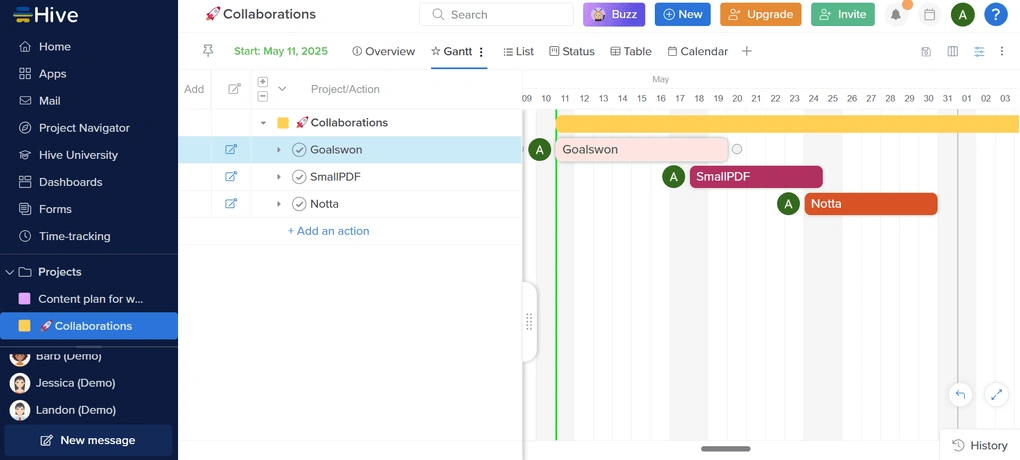
Project management: Hive offers enough project views for most small teams, including Kanban boards, Lists, Tables, Gantt charts, and Calendar. During testing, switching between views was smooth, and I particularly liked the Workload view for getting a quick overview of team capacity.
Task management: Creating tasks was straightforward, and Hive includes everything I expected, from assignees and due dates to dependencies, labels, comments, and file attachments. It also records time directly inside tasks, which is useful if your team tracks billable work.
App library: Hive’s App Library lets you customize the platform with additional features depending on your workflow. I liked that there are plenty of add-ons available, although some require one of the higher-tier plans.
Collaboration: This was one of my favorite parts of Hive. Besides task comments and collaborative documents, it includes built-in team chat and an activity feed, so most project communication stays inside the workspace instead of moving to another app.
Dashboards: The dashboards made it easy to monitor projects and workloads in one place. I also liked that I could customize them with different widgets, filters, and external embeds depending on what I wanted to track.
Time tracking: Hive includes built-in time tracking and timesheets, which were easy to use during testing. Filtering recorded time by project also made reporting much simpler.
Email: Unlike most project management tools I tested, Hive lets you access your emails directly inside the platform. Once I connected my inbox, I could manage emails without leaving my workspace.
Automation: Hive uses a simple automation builder that follows the same logic as most modern project management tools. Setting up automated workflows only took a few clicks.
AI tools: Hive’s AI assistant, Buzz, can answer questions, help build projects, create dashboards, and automate workflows. I also used the AI tools inside Hive Notes, where they helped generate and improve content much faster.
Mobile app: I also tested Hive’s iOS app, and it stayed well synchronized with the desktop version throughout my testing. It made it easy to manage projects, tasks, and team communication while away from my computer.
Integrations: Hive offers native integrations with tools like Google Drive, Microsoft Teams, and Dropbox. Through Zapier, you can also connect it with thousands of additional apps.
User interface: The interface is clean and easy to navigate, and I had no issues finding the features I needed. I also appreciated the Hive University section, which includes tutorials and guides for new users.
Hive pricing
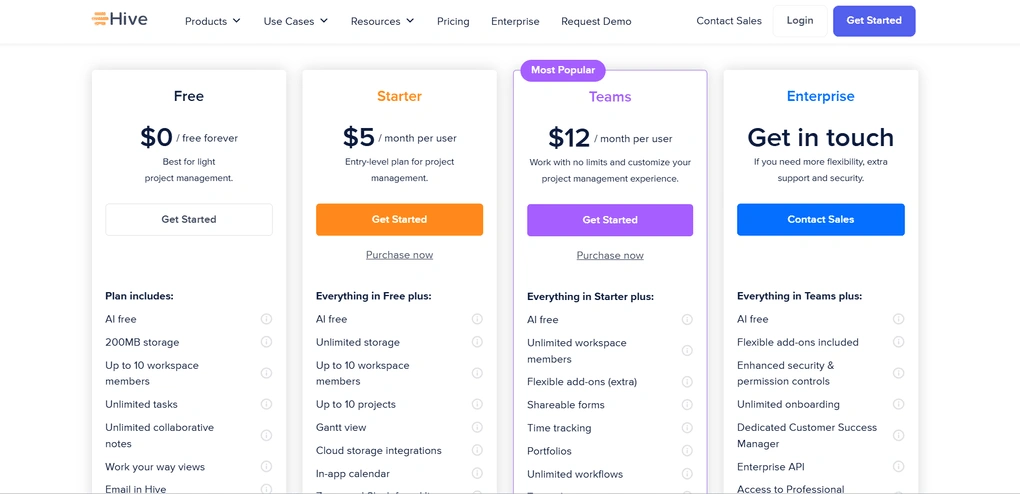
- Free plan available
- Starter plan: $5/user/month with annual billing
- Teams plan: $12/user/month with annual billing
- Enterprise plan: Custom pricing
Hive’s Strengths
Short wrap-up: Hive is an excellent choice for agencies, startups, and small businesses that want project management and team communication in one platform.
Hive’s Limitations
Short wrap-up: If you’re looking for enterprise-level reporting or need advanced features without upgrading to a higher plan, ClickUp or Monday.com are better options.
🔎 Read my full review: Hive Review: The Best Project Management App? (2025)

Motion
Motion has evolved far beyond a scheduling app. It combines project management, task management, AI scheduling, meeting notes, documents, and calendar management in one platform. It’s an excellent choice if you want to replace several productivity tools with a single app.
Bottom line
Professionals and teams looking for one app to manage projects, meetings, calendars, and tasks.
You only need a simple Kanban board or want a free project management tool.
AI scheduling automatically prioritizes and schedules your work across projects and meetings.
It takes longer to learn than Trello, and there is no free plan.
How Motion’s Features Performed During My Testing
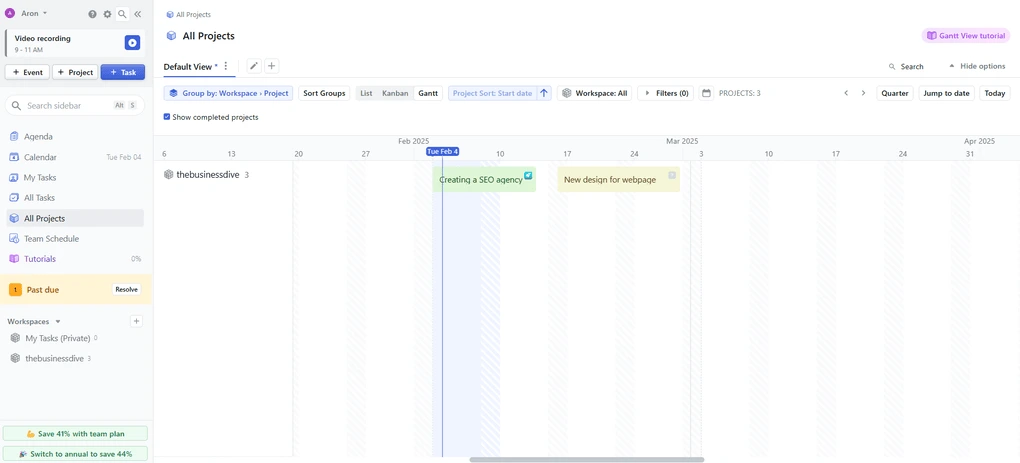
Project management: Motion offers all the essential project management features, including Kanban boards, Gantt charts, list views, and customizable filters. I could quickly create projects, assign tasks, and manage everything from one place. However, compared to ClickUp or even Monday.com, Motion has basic project management capabilities.
Task management: Adding and managing tasks was straightforward throughout my testing. I could easily set priorities, durations, due dates, and assignees, and let Motion automatically schedule tasks into my calendar.
Calendar: Motion brings together Google Calendar, Outlook Calendar, and Apple Calendar into a single view. Having all my events in one place made planning my work much easier.
AI scheduling: The AI scheduling feature is what makes Motion different from most project management tools. Once I added my tasks, Motion automatically scheduled and rescheduled them based on deadlines, priorities, and my availability, which quickly became one of my favorite features.
Team collaboration: Motion has fewer collaboration features than some other project management tools, but it still covers the essentials. I could assign tasks, communicate within projects, and use the Team Schedule to keep track of everyone’s priorities.
Meeting Assistant: Setting up my booking page took me around 10–15 minutes while I learned the available options. Once everything was configured, sharing booking links and managing meetings became very straightforward.
AI meeting note-taker: Motion automatically records, transcribes, and summarizes meetings while turning action items into tasks. I liked that meeting notes become part of the rest of my workflow instead of staying in a separate tool.
Documents: Motion’s Documents feature made it easy to keep notes together with projects and tasks. I also liked that I could link projects and tasks directly inside documents without switching between different tools.
Integrations: Motion integrates with Google Calendar, Outlook Calendar, iCloud Calendar, Siri, Zapier, and many other productivity tools. Through Zapier, you can also connect Motion with over 8,000 additional apps.
Mobile app: I tested Motion on iOS, and the mobile app stayed well synchronized with the desktop version throughout my testing. It’s also great to see that the developer team frequently updates the app with new features.
User interface: Motion has a practical interface that made it easy to find the main features. While navigation was straightforward, I found the learning curve steeper than most productivity tools because of the number of customization options available.
Motion pricing
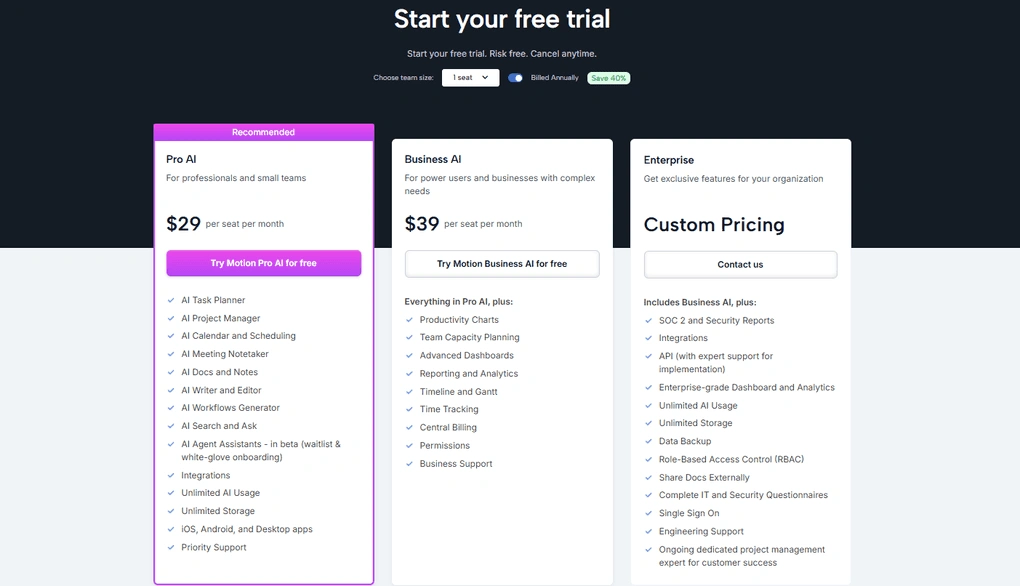
- No free plan available, only a 7-day free trial
- Pro AI plan (individuals): $29/month with annual billing
- Business AI plan (individuals): $39/month with annual billing
- Pro AI plan (teams): $19/seat/month with annual billing
- Business AI plan (teams): $29/seat/month with annual billing
- Enterprise plan: Custom pricing
Motion’s Strengths
Short wrap-up: Motion is an excellent choice for professionals, founders, and small teams who want one app to replace multiple productivity tools and automate daily planning.
Motion’s Limitations
Short wrap-up: If you only need a simple Kanban board or your team depends on advanced collaboration features, you’ll probably be better off with Trello, Hive, or ClickUp.
Related articles:
- Motion vs Asana | A Honest Comparison (2025)
- Motion vs ClickUp | An Unfiltered Comparison (2025)
- Motion vs Notion: Why I use BOTH (2025)
🔎Read my full review: Motion App Review: My $348 Experience and Why I Don’t Regret It

Coda
Coda is an all-in-one workspace that combines project management, documents, note-taking, and collaboration in one platform. It’s a great choice if Trello feels too limited but more advanced tools seem overwhelming.
Bottom line
Individuals and teams looking for a simple all-in-one workspace.
You need an offline desktop app or enterprise-level project management.
Combines documents, notes, databases, and project management in one workspace.
No offline desktop app, and the Enterprise plan is expensive.
How Coda’s Features Performed During My Testing
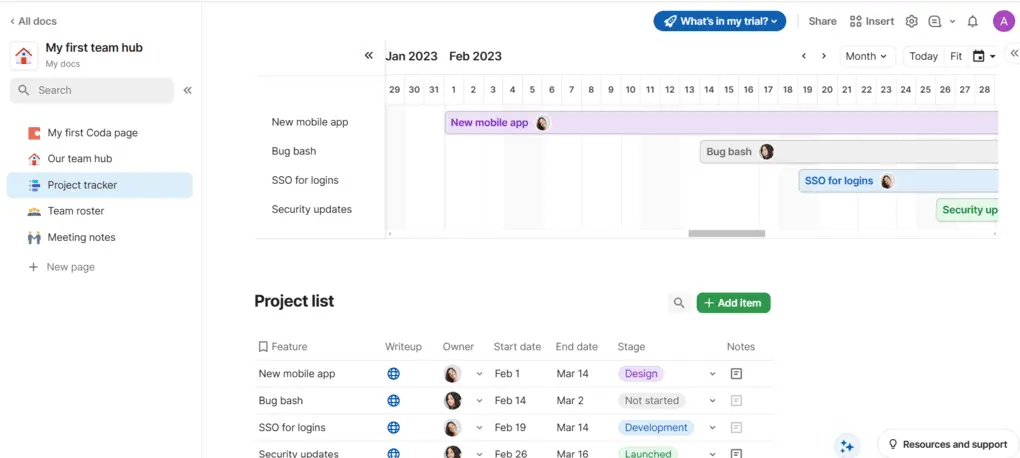
Project management: Coda offers multiple project views, including boards, tables, calendars, and Gantt charts. During testing, I liked how easy it was to customize layouts, filters, and dashboards to organize projects exactly the way I wanted.
Task management: Task management is highly customizable thanks to the different column types, formulas, and conditional formatting options. I also liked that I could comment, mention teammates, and attach files without leaving the task.
Note-taking: Coda uses a block-based editor similar to Notion, making it easy to build structured notes. I found the note-taking experience intuitive, and the drag-and-drop editor made creating documentation quick. I also used this feature for knowledge management purposes for TheBusinessDive.
Data & document management: Coda works equally well for documents, databases, spreadsheets, and internal wikis. During testing, I appreciated the different sharing permissions. This made it easy to control who could view, edit, or interact with each document.
Team collaboration: Collaboration is built directly into documents and projects. I could edit documents with teammates in real time, assign tasks, leave comments, and share pages with only a few clicks.
Automation: Coda uses a simple “When → Then” automation builder for repetitive workflows. Setting up automations was straightforward, and I had no issues creating simple workflow rules.
Coda AI: Coda AI can write, summarize, brainstorm ideas, analyze information, and even convert text into tables. I found it very useful when working with documents and organizing project information.
Integrations: Coda integrates with many third-party tools and also supports Zapier. Through Zapier, you can connect it with over 8,000 additional applications.
Mobile app: Coda offers mobile apps for both iOS and Android, so it’s easy to access documents and projects while away from your computer.
User interface: Coda has a clean and modern interface that was easy to learn during testing. While it offers many advanced features, the navigation stayed simple, and the available templates helped me get started much faster.
Coda pricing
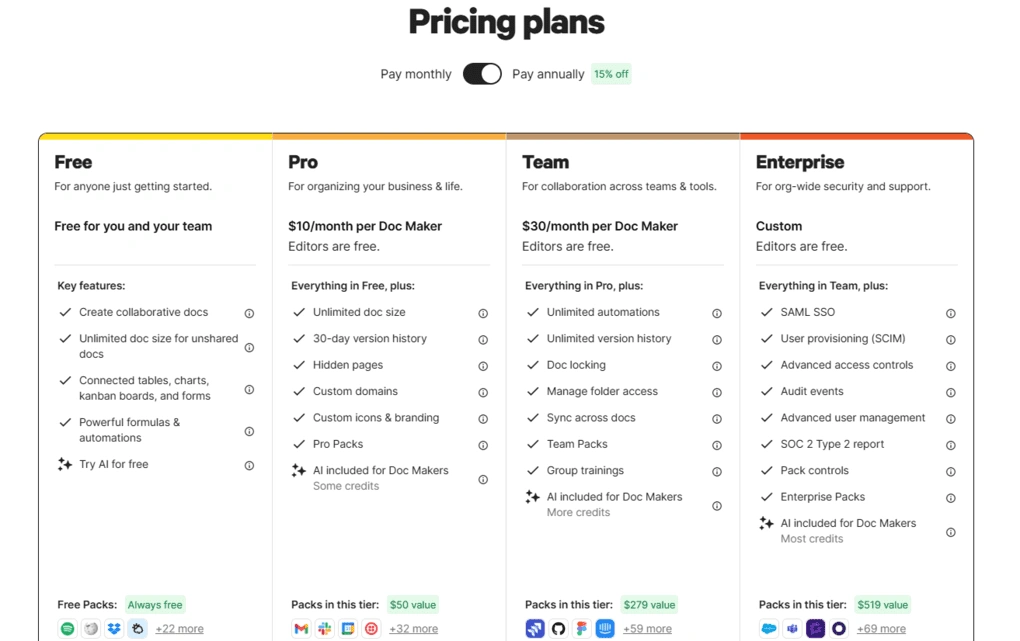
- Free plan available
- Pro plan: $10/month per Doc Maker with annual billing
- Team plan: $30/month per Doc Maker with annual billing
- Enterprise plan: Custom pricing
Coda’s Strengths
Short wrap-up: I recommend Coda to individuals and small teams looking for a simple project management tool that also works as a note-taking app and collaborative workspace.
Coda’s Limitations
Short wrap-up: If offline access or enterprise pricing are important factors for your team, you’ll probably be better off with another project management platform.
Related articles:
- Coda vs ClickUp | A Honest Comparison (2025)
- Taskade Vs Coda: Side-by-Side Comparison (2025)
- Notion vs. Coda: Is It Time to Switch After +2 Years? (2025)
🔎Read my full review: My Honest Coda.io Review: Here’s What Surprised Me! (2026)
Explore our Apps directory
A curated directory of software tools we’ve independently reviewed, with links to full reviews, comparisons, and category guides.

AppFlowy
AppFlowy is an open-source workspace that combines project management, notes, wikis, and collaboration in one platform. It offers a familiar interface, offline access, and self-hosting capabilities, making it a great Trello alternative for users who want full control over their data.
Quick verdict
Privacy-focused users and teams looking for an open-source project management tool.
You rely on advanced automations or extensive third-party integrations.
Offline access, self-hosting, and complete control over your data.
Fewer integrations and less mature workflow features than larger platforms.
How AppFlowy’s Features Performed During My Testing
Project management: AppFlowy works well as a lightweight project management tool. I found it easy to organize projects using different views, and sharing projects with team members only took a few clicks.
Task management: Managing tasks was straightforward, with support for assignees, dates, progress tracking, and custom statuses. It has all the essentials for project organization.
Note-taking: The note editor uses a block-based structure similar to Notion, and it’s easy to create documentation alongside projects. Slash commands also speed up building pages with tables, boards, images, and other content.
Collaboration: AppFlowy includes the collaboration features most small teams need. Sharing projects, assigning tasks, and working together on documents all worked smoothly during testing.
AI features: The built-in AI assistant can generate drafts, summarize content, and answer questions directly inside your workspace. I also liked that AppFlowy supports Local AI, which allows privacy-focused users to run AI models on their own devices.
Integrations: While AppFlowy doesn’t offer as many native integrations as some competitors, it supports Zapier, giving you access to thousands of third-party apps.
User interface: The interface seemed familiar from the beginning and was easy to navigate. If you’ve used tools like Notion before, getting started with AppFlowy takes very little time.
AppFlowy pricing
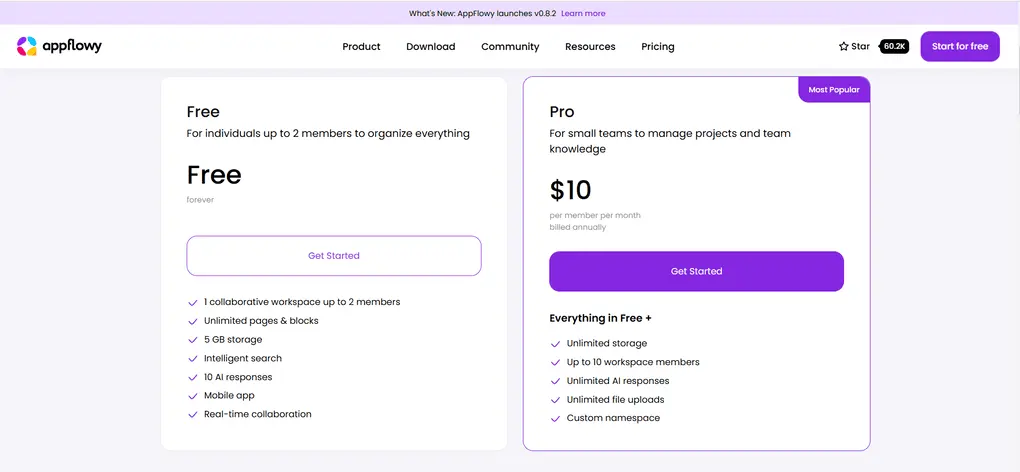
- Free plan available
- Pro plan: $10/user/month with annual billing
- Self-hosted plans: start at $1/month
AppFlowy’s Strengths
Short wrap-up: AppFlowy is a great choice for individuals, developers, and small teams who want an open-source Trello alternative with offline access and full control over their data.
AppFlowy’s Limitations
Short wrap-up: If your team depends on advanced automations, extensive integrations, or enterprise-level project management features, you’ll likely be better off with ClickUp, Monday.com, or Hive.

ClickUp
ClickUp is a project management platform built for teams that need more than simple task tracking. Compared to Trello, it offers significantly more features, including docs, dashboards, automation, time tracking, and AI, while still providing one of the most generous free plans available.
Quick verdict
Teams that need advanced project management without paying for premium features.
You prefer a lightweight tool with a very short learning curve.
A generous free plan packed with advanced project management features.
The platform can feel overwhelming at first and still has occasional performance issues.
How ClickUp’s Features Performed During My Testing
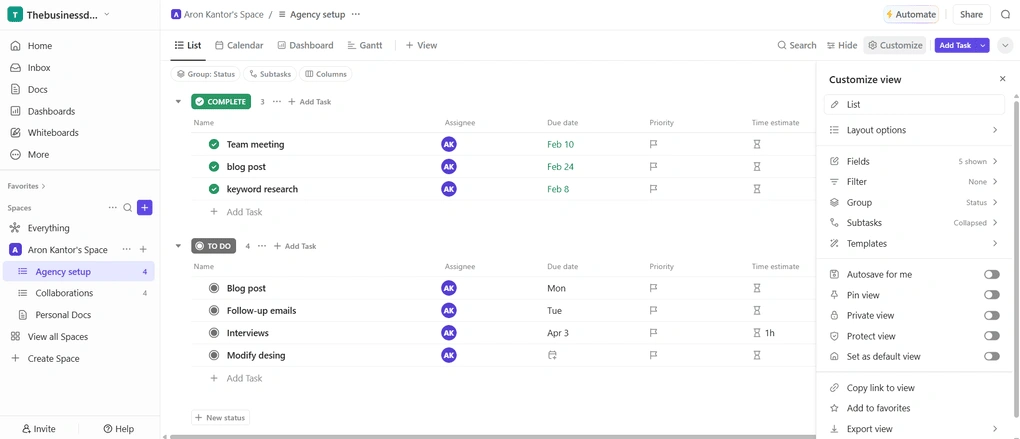
Project management: ClickUp is an advanced project management tool that offers numerous views, including List, Kanban, Calendar, Gantt, Workload, and Team. I frequently used the customization options, especially filters, layouts, permissions, and workload views, when reviewing project progress.
Task management: It’s useful for structured task management for teams. Setting up tasks only took a few clicks, and each task supports subtasks, priorities, reminders, attachments, comments, and relationships. The amount of information you can add makes ClickUp suitable for managing more complex projects.
Team collaboration: ClickUp brings project management, documentation, and communication into one workspace. I used Whiteboards, Docs, and Chat throughout my testing instead of switching between separate collaboration tools.
Time tracking: The time tracking tools are available on desktop, web, and mobile. Filtering tracked time by projects and workflows made reporting much easier.
Automation: ClickUp uses simple “When → Then” automation rules. Creating automation for task updates, due dates, and communication was very fast and made it easier to manage complex projects more effectively.
AI tools: ClickUp Brain answers questions about projects, tasks, and documents, and it can also generate content or transcribe meetings. Since it’s an optional add-on, I focused most of my testing on ClickUp’s core project management features.
Integrations: ClickUp integrates directly with tools like Slack, Microsoft Teams, and Google Calendar. Through Zapier, it also supports more than 8,000 additional apps.
Mobile app: I used the iOS app to access projects and tasks while away from my computer. The interface is well designed, but I occasionally noticed slower performance, and several desktop features are still unavailable.
User interface: ClickUp includes more tools than most project management platforms, so there is more to explore after signing up. The built-in search helped me locate features quickly, and ClickUp University offers tutorials for learning the platform.
ClickUp pricing
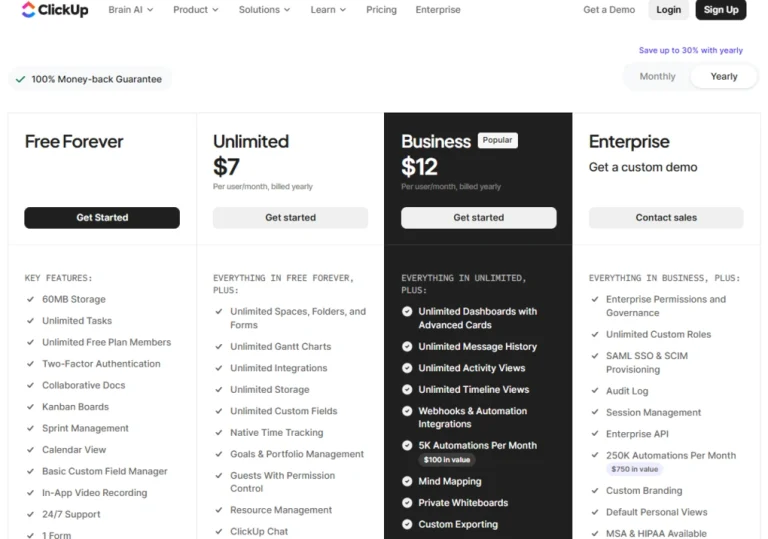
- Free plan available
- Unlimited plan: $7/month with annual billing
- Business plan: $12/month with annual billing
- Enterprise plan: Custom pricing
Related post:
- ClickUp Pricing 2025 | Why Is EVERYONE Choosing It?
- 5 Best ClickUp Alternatives | +20 Apps Tested (2025)
ClickUp’s Strengths
Short wrap-up: ClickUp is an excellent choice for teams and individuals who have outgrown Trello and want advanced project management features without immediately paying for a premium plan.
ClickUp’s Limitations
Short wrap-up: If you prefer a lightweight project management tool with a minimal learning curve, you’ll probably find Trello, Coda, or Vaiz easier to get started with.
Related articles:
- SmartSuite vs ClickUp 2025 | A Honest Comparison
- Motion vs ClickUp | An Unfiltered Comparison (2025)
- ClickUp vs Monday: My Findings After +6 Months (2025)
- Taskade vs ClickUp | An Unfiltered Comparison (2025)
- Coda vs ClickUp | A Honest Comparison (2025)
- Notion Vs ClickUp: What I Discovered in 90 Days! (2025)
- Asana Vs ClickUp: This will save you $300 (2025)
🔎 Read my full review: My Honest ClickUp Review After Using It For +3 Months (2026)
Summary: Best Trello Alternatives in 2026
After I spent numerous months testing project and task management apps, I found these as the top Trello alternatives in 2026. I tried to categorize them based on the most frequent use cases to help you get a full picture of the tools you can choose from.
Related readings:
- 8 Best Project Management Software in 2025 | My Honest List
- 5 Best ClickUp Alternatives | +20 Apps Tested (2025)
Looking for similar tools?
Visit our library of PDF editors to explore other apps we’ve reviewed in this space and how they compare.
Why you can trust our reviews
At thebusinessdive.com, our team tests, reviews, and compares hundreds of productivity apps every year — from project management tools to note-taking apps. We dive deep into real-world use cases to help you find the right tools that actually improve your workflow, not just add noise.
Our mission? No fluff, no shortcuts—just honest, hands-on insights from productivity pros.
Have a question or suggestion? I’d love to hear from you. Feel free to reach out anytime at aronkantor@thebusinessdive.com.
Frequently asked questions
Which is better than Trello?
There are many project management software options on the market if you are looking for a Trello alternative. I would recommend a different app for software development teams than someone who runs an agency and needs an agile project management app.
However, after spending +100 hours with personal testing, these six are the best Trello alternatives for me:
- Vaiz
- Hive
- Motion
- Coda
- Monday.com
- AppFlowy
- ClickUp
What is the free alternative to Trello?
If you work alone, there are numerous great Trello alternatives. For me, ClickUp, Notion, and Coda are definitely among the top free Trello alternatives.
What replaced Trello?
Well, in the past +5 years, many project management tools have risen up & become more than a solid Trello alternative. For example, Asana, ClickUp, Monday.com.
What are the best Trello competitors?
In addition to the apps mentioned here, I would add Notion, Todoist, Asana, Airtable, Microsoft Project, and Jira. For software development project managers, I can also recommend SmartSuite and Nulab Backlog.
Disclosure: I only recommend products I would use myself, and all opinions expressed here are our own. This post may contain affiliate links that, at no additional cost to you, may earn a small commission. Read the full privacy policy here.

Hey there! I am Aron, the founder of Thebusinessdive. I have been testing productivity apps for almost three years now. I reach 25.000 -50.000 people monthly with the mission to help you find the perfect productivity apps. Subscribe to my YouTube channel, newsletter, and social media to hear more about the best productivity tools. Let’s dive in!